How to organize Etsy listing photos across your catalog
· 5 min read
Use focused uploads, staged photo organization, and position-based bulk tools to maintain Etsy listing galleries in Everlyst.
A new product photo is easy to create and surprisingly easy to leave unused. The file sits in a folder while older images remain on the listing. Across a catalog, the result can be a mixture of old packaging photos, inconsistent image order, and useful detail shots that buyers never reach.
Everlyst’s Images & Media workspace gives these tasks a dedicated place. You can work on one listing, or select several listings for a shared operation. The useful question is whether every product needs the same change or whether you need to organize one gallery carefully first.
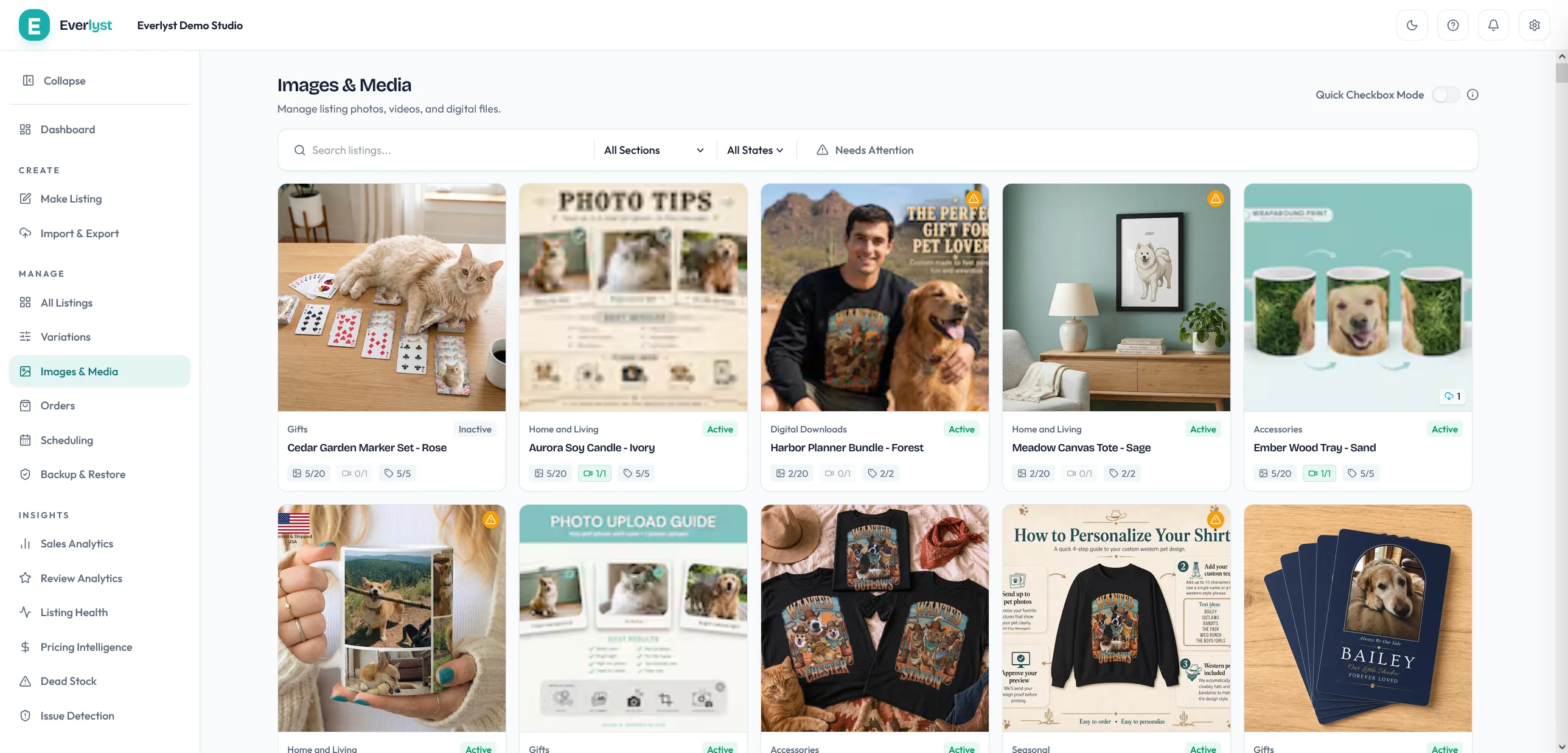
Images & Media workspace overview using existing demo imagery. Individual upload and bulk-operation controls are explained below.
Start by deciding what each photo is for
Before uploading, give the gallery a simple sequence. A main image introduces the product. Other images can show scale, materials, a close-up, the available options, and what arrives in the package. The right sequence depends on the product; a printable file needs different explanations from a physical gift.
For a personalized mug, you might start with a finished example, then show the opposite side, the available lettering, a scale reference, and the packaging. A shared care image may belong near the end of several mug galleries without becoming their main photo.
This makes the editing decision clearer. A product-specific close-up belongs to one listing. A new care card may belong to a selected collection. Neither task requires treating every photo in the shop as interchangeable.
Upload several photos to one listing
Open the listing in Images & Media for a focused update. The photo picker supports selecting multiple files, so you can prepare the set together rather than repeating the picker for each image. Review file eligibility and the remaining image slots before applying.
Photo and video selection are separate. Multi-selecting photos does not mean uploading several videos as one photo set. Images are available on Growth and Pro, while video controls are Pro features; see current plans for details.
Check the intended photo order and write descriptions that match the actual images. Apply the update and follow the media job’s progress. The selected files are not proof that every upload has already reached Etsy: use the job results to confirm what happened.
When preparing a new product in Make Listing, the staged media workflow lets you organize the photos before submitting the listing work. Review the gallery together with the surrounding product fields so the images, options, and description tell the same story.
Use a bulk upload for a genuinely shared image set
A bulk upload is a different operation from adding several files to one listing. Select the listings that should receive the same images, stage the shared set, and choose whether it belongs at the start or end of each gallery.
For example, a collection may need the same updated care instructions and packaging photograph. Write the alt text for each staged image once, then review where those images will land across the selection. Check that the shared picture actually describes every product receiving it.
Avoid adding a generic image to unrelated products merely to make the operation larger. A packaging photograph for a boxed print may be misleading on an unframed digital download. Narrow the selection to the products for which the visual is accurate.
Everlyst supports up to 20 staged images in a bulk image operation, subject to each target listing’s available capacity. That is not a promise that 20 additional images can fit on a listing that already has a gallery. Read the per-listing eligibility and result messages.
Choose a main photo and organize by position
The main photo deserves its own review because it represents the product before the buyer opens the full gallery. Use the relevant main-photo or reorder operation when the desired image is already present. Confirm that the target position contains the intended image for each selected listing.
Filmstrip selection helps connect a visible image column with a position-based operation. If you change the target after making that selection, read the mismatch warning. It is a prompt to check your intention, not proof that the new position is wrong.
Position targeting can count from the beginning or the end. “Last photo” can therefore identify the final image on both a six-photo listing and a nine-photo listing. It does not identify the image’s subject. If one gallery ends with packaging and another ends with a size chart, a shared last-photo operation will still reach different subjects.
Inspect a few representative galleries before choosing a position rule. Where the sequence is inconsistent, organize the exceptions individually or split them into separate selections.
Write alt text that describes the picture
Alt text should help someone understand the image. Describe the product, visible details, and relevant context rather than repeating a list of search terms. Our Etsy listing-photo guide is a useful companion when reviewing the wider gallery.
Everlyst supports bulk alt-text targeting for different photo sets, including missing alt text and specific positions. Templates can use listing titles and image positions, but a token is only useful when the resulting description remains accurate.
For example, a consistent care-card image might justify shared wording across a collection. A close-up showing a different pattern on every item needs a more specific description. Preview the target selection and use individual editing where a shared description would lose the important detail.
Etsy’s listing-image requirements also matter for personalized products. The main image should accurately represent what buyers can purchase. A tidy gallery does not compensate for an image that misrepresents the finished item.
Allow for full galleries and partial results
A listing at Everlyst’s 20-image ceiling cannot receive additional photos through an ordinary add operation. Some existing-photo operations are also constrained by Etsy’s photo-reassociation behavior at that ceiling. Read the displayed lock or skip explanation instead of assuming every reorder is available just because it uploads no new file.
Bulk jobs report results per listing. A skipped listing may need a separate adjustment; an upload that succeeded before another media step failed may already be present. Inspect the current gallery before retrying work that could add another copy.
Backup & Restore is not a general image-history service. Do not assume a deleted image or every media operation can be restored through a catalog snapshot. Keep your original media files and review destructive choices before applying.
A useful routine is to organize one representative gallery, identify the changes that really are shared, and then apply those changes to the matching group. Explore Images & Media for the individual and bulk controls, or read the earlier bulk-photo release for the position-based tools already available.