How to manage personalization questions across Etsy listings
· 5 min read
Set up useful buyer questions, choose the right editing workflow, and understand optional personalization pricing in Everlyst.
A personalized product needs the right information before you can make it. A name, a date, a font choice, and a reference photo are different instructions. Asking buyers to put everything in one text box makes those instructions harder to explain and harder to check when an order arrives.
Etsy now supports several personalization fields on a listing. Everlyst brings those questions into Make Listing, Advanced Edit, and Bulk Edit, with different workflows for individual products and shared replacements. The useful starting point is deciding which details belong together and which listings really need the same setup.
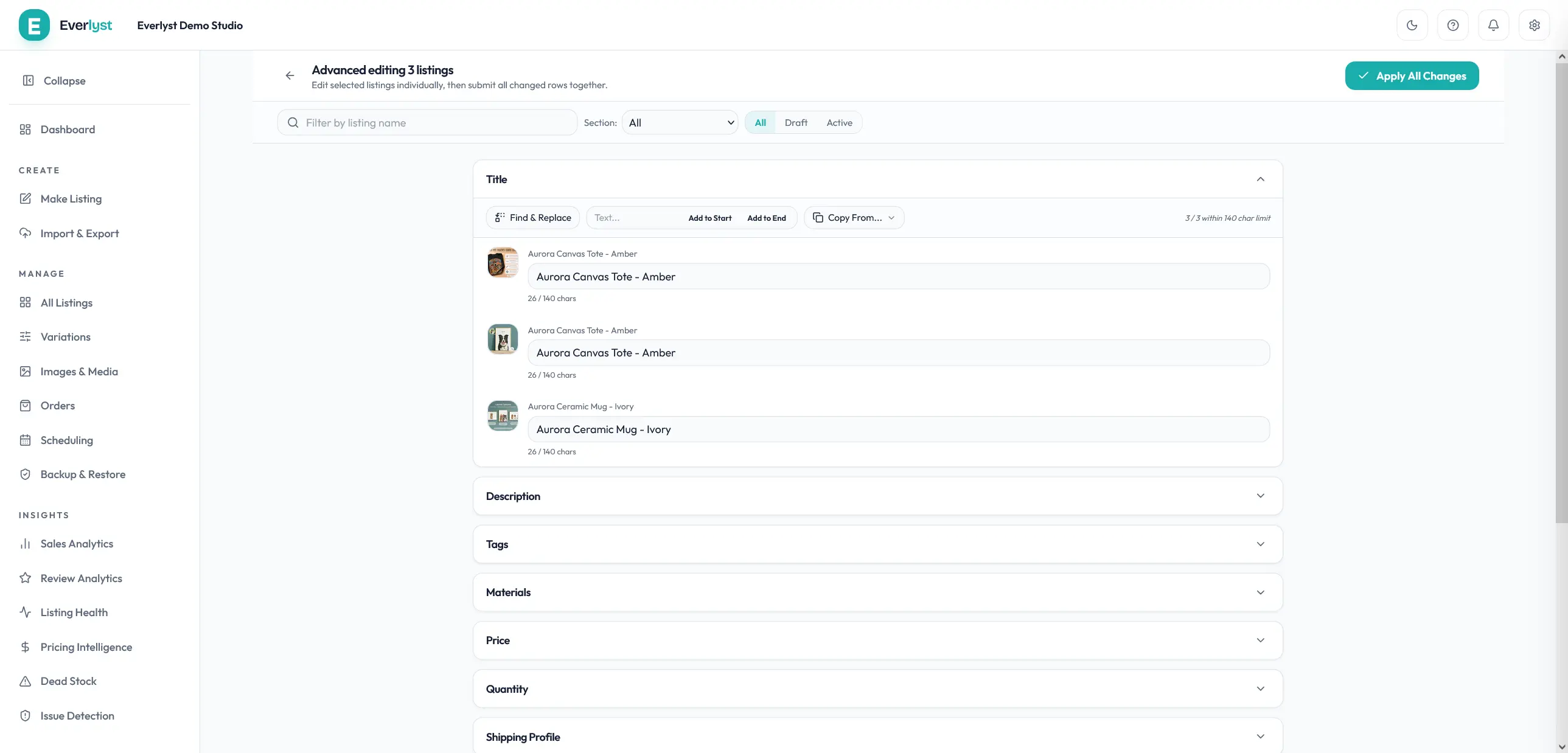
Advanced Edit workspace overview. The questions and pricing workflow is described below; this image does not show the question editor.
Start with one product and a clear set of questions
Imagine a personalized anniversary print. You need two names and a date. Buyers can choose a lettering style, and some may want a short dedication. Those are four distinct pieces of information, even though they belong to one product.
A practical setup could be:
- A required text question for the names, with an example of the requested spelling.
- A required text question for the anniversary date, including the format you need.
- A dropdown for lettering style, using the same labels shown in the listing photos.
- An optional text question for the dedication.
This is an example to adapt, not a template every personalized shop should copy. A pet portrait might need a file upload instead of a date. An engraved keyring may need only one short text field. Start with the information you actually use to produce the item.
Etsy allows up to five fields per listing. Its personalization guide describes text boxes, lists of options, and file uploads. It also documents native bulk editing, so using Everlyst is a choice about where you manage your catalog, rather than the only way to edit multiple listings.
Choose the input that fits the answer
Use a text question for information unique to the buyer: a name, date, dedication, or engraving. Keep the instructions specific. “Names exactly as you want them printed” gives the buyer a clearer task than “Personalization details.” Set a character limit that fits the actual product design.
Use a dropdown when the buyer must choose from a known set, such as lettering styles. Avoid using personalization to manage stock. Size and material choices that affect inventory, SKU, or the base product configuration belong in variations.
Use an upload question when production requires the buyer’s own image or file. Labels can explain which file belongs where when you need several inputs. Configuring an upload question does not mean Everlyst generates artwork, processes those files, or automatically fulfills the order. You still need a production workflow for the submitted material.
Required and optional settings should follow the product. If you cannot make an item without a name, make the name required. If a dedication is an extra, keep it optional and explain what happens when the buyer leaves it blank.
Choose individual editing or a shared replacement
For a new product, set up its questions in Make Listing. For existing products that need different wording or options, use Advanced Edit. This is useful when a mug allows a short message but a larger sign can accept several lines.
For several listings that should share a complete question set, use Bulk Edit. Start by selecting only the relevant products. Review the existing setup and prepare the replacement questions before confirming.
Bulk personalization is a replacement workflow. Do not treat it as adding one extra question while leaving every other question on every listing unchanged. If one selected product has a special question that the others do not, either include it intentionally in that product’s individual edit or leave the product out of the shared replacement.
A small representative selection is useful when establishing a new question set. Review the resulting listing before applying the same approach to a broader group. This checks your wording and product fit; it does not turn a replacement into a merge.
Optional text can have an add-on price
An optional engraving or dedication may require extra work. Etsy supports an additional charge on an optional text question. The price is not a general surcharge that can be attached to any question type: required text, dropdowns, and uploads do not qualify for this pricing feature.
Everlyst’s individual question editor includes an add-on-price control for eligible optional text. For example, a dedication could be optional with an additional charge, while the names required for the base design remain included in the product price. Describe that distinction in the listing so buyers understand what they are choosing.
Etsy documents a range equivalent to $0.20–$500 USD and uses the shop’s currency. Read its add-on pricing guidance when deciding how to configure an eligible question. A pricing control does not make an otherwise ineligible question eligible.
There is an important current Bulk Edit boundary: Everlyst skips listings that already have priced personalization rather than applying a shared replacement over their listing-specific prices. Use individual editing for those listings and read any skipped-result explanation. Broader support across the remaining personalization workflows is coming soon; no release date is announced.
Check the complete buyer instruction
Before applying, read the questions as a buyer would. Check spelling, required settings, character limits, dropdown labels, and any optional price. Make sure the listing images and description use the same option names.
After applying, review the job’s results and the listing’s current personalization. A skipped listing needs a separate decision; it should not be assumed to have received the shared setup. If a result needs review, inspect the existing listing before submitting another replacement.
Spreadsheet workflows currently have narrower personalization support than the full question editor. Use the in-app question workflows for advanced personalization rather than assuming an ordinary listing CSV will carry every question type or price. Fuller support is coming soon.
Personalization changes also deserve care when restoring an earlier edit. Eligible restores use safeguards for newer buyer-question changes, and a snapshot is not a promise that every later state can be overwritten. See Backup & Restore for the current boundaries.
The aim is a question set that fits the product and is easy to maintain. Start with one listing, choose the right input for each answer, and use a shared replacement only where the full setup belongs. Explore Everlyst’s editing tools when you are ready to bring that workflow into your catalog.