How to update production partners across multiple Etsy listings
· 5 min read
Assign or clear production partners across selected Etsy listings, review eligibility, and keep partner changes separate from fulfillment setup.
Changing a production partner often affects more than one listing. You may move a collection to a different printer, add a specialist for a new product line, or discover that a partner is attached to products it no longer helps produce.
The catalog task is to make the affected listings accurately describe how those products are made. Everlyst supports production-partner assignment and clearing through its editing workflows, alongside the maker and item details used to check eligibility. The first step is deciding which listings really belong in the change.
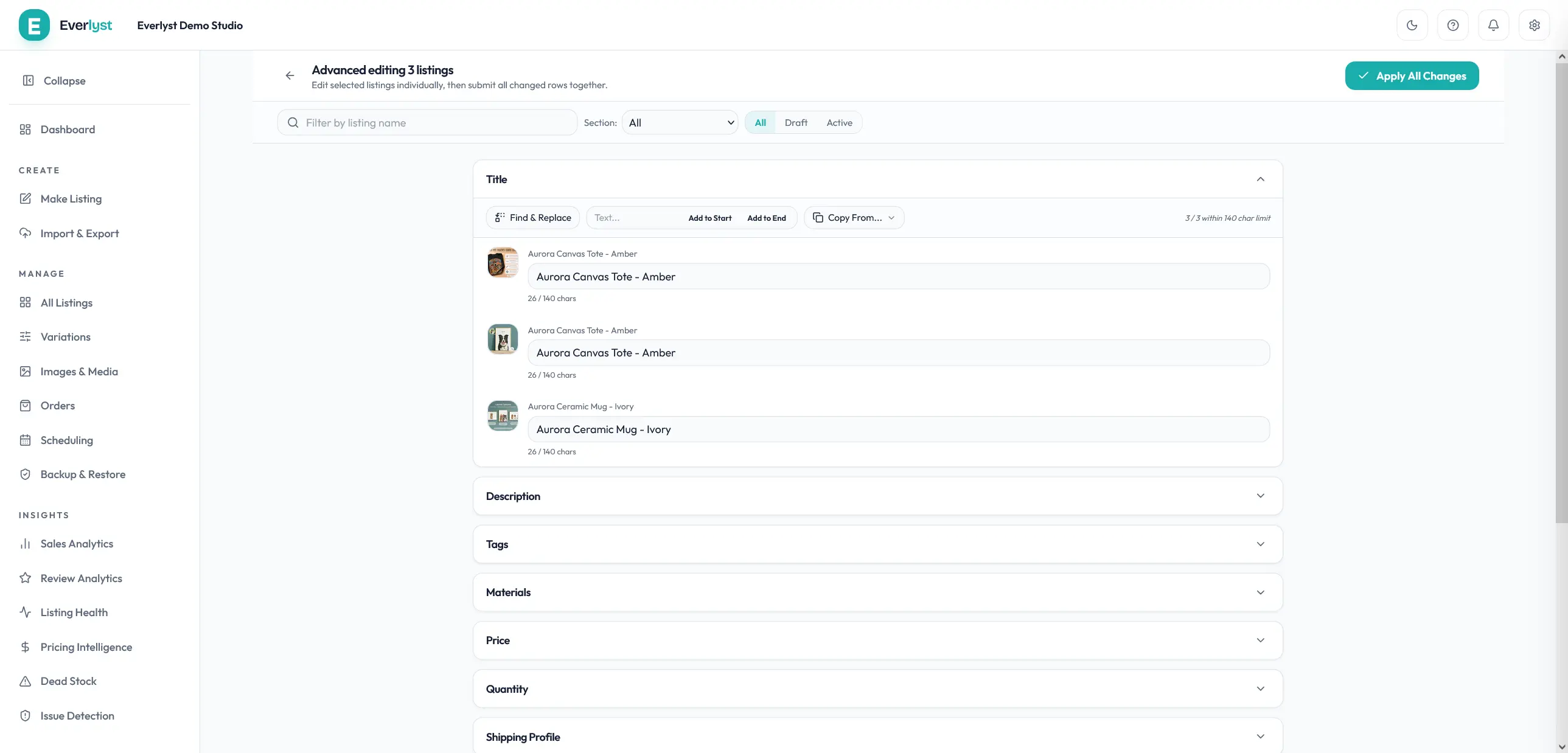
Advanced Edit workspace overview. Select Production Partners for partner-specific changes; that control is not expanded in this image.
Understand what a partner assignment means
A production partner is a person or business outside your shop that helps physically produce an eligible item. Etsy’s production-partner guidance describes examples such as print-on-demand services and specialist manufacturers, as well as businesses that do not qualify.
A listing association is a disclosure about that product. It does not connect a fulfillment API, transfer a print file, change an order-routing rule, or send an order to a new supplier. If you use a separate production platform, update its configuration through that platform as needed.
For example, changing the production partner on a poster listing does not by itself tell your print provider to make a different paper size. Treat the listing disclosure and the production integration as two related tasks that need their own checks.
Etsy itself supports changing production partners across selected listings. Everlyst offers another place to manage those associations while reviewing the surrounding catalog fields. On Etsy, select the relevant listings and use Editing options, then Change production partners. In Everlyst, choose the editing workspace that fits the other catalog changes you need to make.
Create the partner profile on Etsy first
If the new partner does not exist in your shop yet, create its profile on Etsy. In Shop Manager, open Settings and Partners you work with, then add the partner’s details. Review its location, public description, and the information Etsy asks about your working relationship.
Save the profile before trying to assign it in Everlyst. Everlyst’s listing controls select from the partners associated with your shop; they are not a replacement for Etsy’s partner-profile creation form.
When a recently added partner is missing from the available choices, refresh the shop data through Sync from Etsy. Allow the refresh to finish and reopen the editor. Shop Settings also provides an advanced discovery refresh for shop configuration. Check the active shop when working with linked accounts: a profile belonging to one shop is not automatically a profile in another.
Select the products that actually changed
Start in All Listings and identify the affected group. A shop section or a search can help narrow the selection, but review the products themselves before applying a shared association.
Imagine you sell art prints and handmade frames. Your new print partner makes the prints, while you still make the frames yourself. Selecting the whole shop because the products share a brand would attach the same partner to items with different production arrangements.
A better selection contains the prints the new partner actually produces. If only one paper type moved, narrow the group again. Clear selection boundaries make the preview easier to review and reduce the chance of carrying a valid value onto the wrong product.
For shops with several linked Etsy accounts, check the shop switcher first. Multiple-shop linking keeps the workspaces separate; it does not combine partner lists or apply a change across every linked shop.
Apply one assignment or edit listings individually
Use Bulk Edit when the same partner assignment belongs on all selected listings. Choose Production Partners, select the intended partner or partners, and review the change. If the correct result is no partner association, use the explicit clearing choice and inspect the preview carefully.
Use Advanced Edit when different listings need different partner selections. The important distinction is whether you are applying one shared result or making a set of individual corrections. Choose the workflow that matches the work instead of forcing unrelated products into one replacement.
Partner editing is available through the paid editing workflows. Check the pricing page for the current plan details before choosing a workflow for a shop.
Changing a partner is also a good time to review the related maker, item-type, and production-era fields. Those values describe the product together. A partner choice should not be used to work around a combination that does not accurately describe how the item is made.
Read eligibility messages before applying
Everlyst checks the effective combination of maker details, production era, supply status, and partner assignment. Listings with an invalid combination can be excluded before the change is queued. Read the reason and correct the product’s actual information rather than repeatedly submitting the same combination.
Clearing a partner is not automatically appropriate for every listing. If the product still relies on outside production, review Etsy’s requirements and the real arrangement before removing the association. Likewise, adding a partner does not make every product eligible for sale under that arrangement.
CSV editing can also include partner IDs and the related marketplace fields. Use a current export and review the row-level validation messages. The sheet’s job is to carry the intended values; it should not be used to guess identifiers or to copy a profile from another shop.
For mixed catalogs, separating groups by how products are made often makes these checks easier. You can resolve one consistent group at a time and leave exceptions for individual editing.
Review the result and the surrounding listing
Before confirming, check the selected listings, the full partner selection, and any excluded rows. Once the job finishes, read its results. A completed batch may still contain individual listings that need attention, so do not use the overall heading as a substitute for reviewing the details.
Then inspect representative listings on Etsy. Check that the intended association is shown and that other customer-facing information still matches the arrangement. Etsy recommends keeping shipping locations accurate when products ship from a partner, and explaining the relationship appropriately in the shop’s About section.
This final review is especially useful when switching printers or manufacturers. The partner name might be correct while the dispatch location, processing information, or production-platform setup still needs a separate update.
Everlyst brings partner editing into the same catalog workspace used for other listing changes. Select the right products, prepare the intended associations, resolve eligibility messages, and review the results. Open the Bulk Edit overview to see how that fits alongside your other catalog maintenance.